Electronics projects and kits Stuff I design and build and take apart

5Feb/120

LivingColors Control and Arduino 1.0

Arduino 1.0 has changed some names, the LiCo  Control example needed to be updated. The updated version is here : a_LiCo_Control_A1.zip

1Jan/126

Livingcolors Gen 2 WILL work with Livingcolors SmartLink


Correction :

Die hard nerds know this all along : don't trust the manual. I tried this out in a big store and Rde in the comments pointed this out as well.

In a previous post this was still unclear, now it's sort of confirmed : the Gen2 remote wil work just fine with the SmartLink lamps and adapters and the Livingwhites Smartlink remote will work with the plain Gen2.

So now it's clear there are only two generations and protocols : The Gen1 and the SmartLink.

The picture in the manual for the LivingWhites Starterpack adapters  is still pretty confusing:

LivingColors remotes, Gen2 no Smartlink

LivingColors remotes, Gen2 no Smartlink

The one on the right could be the Gen2 remote but also the Gen1 remote.

28Dec/111

Philips adds new models to LivingColors product line.

In a clever plan to keep their customers permanently slightly confused, Philips has added new models to their LivingColors product line. The boxes and lamps are virtually the same, the remote is different. Both versions are labeled as "Generation 2"

LivingColors Gen2 but no SmartLink

LivingColors Gen2 but no SmartLink

The new buzzword is "smartlink".

LivingColors Gen2 with SmartLink

LivingColors Gen2 with SmartLink

According to the manuals, both the old ( 69143 ) and the new version ( 69171 ) of the Gen 2 lamps  use IEEE 802.15.4.

So now we have the "Generation 1" which does not work  with the "Generation 2", and there is the "Generation 2 smartlink". Gen 1 and Gen 2 will not work with each other and i'm pretty confused about mixing "Gen 2" with and without "smartlink".

The original LivingColors was pretty over engineered of what it did and it gave me the impression that Philips had bigger plans for these lamps. Apparently they do now with smartlink, but the original LivingColors was more of a prototype.

smartlink is interesting and promising. Philips was one of the founders of the Zigbee name and concept and they used some of the concepts and protocols of Zigbee for the smartlink enabled LivingAmbiance lamps.

For now, I'm stuck with two incompatible lamps.


11Apr/1010

Using the CC2500 Arduino Shield

Software : the Arduino Library

( the hardware is described here )

Update : the example program has been updated to Arduino version 1.0. New version here : a_LiCo_Control_A1.zip

The software consist of a library for the Arduino that can control a Philips LivingColors and a couple of sample programs. The library takes care of sending an receiving of messages using the CC2500 and can be used as a basis to communicate between two shields.

The library can be found here and should be saved in the  "libraries" directory of the Arduino environment (this is the "hardware/libraries" directory in older versions of Arduino). You should have a  "<arduino>\libraries\LivingColors" directory with the files :

  • CC2500.cpp
  • CC2500.h
  • ColourConversion.cpp
  • ColourConversion.h
  • keywords.txt
  • LivingColors.cpp
  • LivingColors.h

The library is here and the files are well documented.

The source code has a GPL license.  The code is based on code by Jeroen Domburg, known from various hacks on Hack a day and Tweakers, and described in an article van of the dutch edition of Elektor in May 2008. George Mathijssen cleaned up the code and got it working as an Arduino library.

The library is likely to have bugs and omissions. The RGB to HSI conversion seems a bit wrong and we ignore the ACK and NACK responses from the LivingColors lamp. Fixes and improvements are welcome !

LiCo_Control : an example of an Arduino application.

To test the library i have made an application to control LivingColors lamps. The application receives commands by serial over USB, you can control it with something like Putty or HyperTerminal.

When LiCo is ready to execute a command it sends a "!". If it did not understand a command it sends a "?".

The available command's are :

Command Function
r reset
wn-rrr-ggg-bbb r, g and b are numbers 000 to 255. Example "w000-255-000\" for bright green. n is the lamp number.
hn-hhh-sss-iii h, s and i are numbers 000 to 255. No example for now. n is the lamp number.
i print info
nn turn lamp number n on
fn turn lamp number noff
ee e = 0 echo off, e = 1 echo on.
l listen for addresses. Use i to list addresses.
saabbccddeeffgghhii store address in a..i. 9 numbers as 2 digit hex
? dummy command.

Using the application to control a LivingColors lamp :

In LiCo-Control you can get control over the lamp by  :

  • Switching the lamp on with the remote.
  • Opening a connection to the Arduino board with a terminal application (putty, hyperterminal.. etc.).
  • Telling the application to learn the code of the lamp by sending the "l" command..
  • .. and control the lamp with the remote..
  • The Arduino will the eavesdrop on the communication between the remote and the lamp and will learn the addresses of  lamp and remote.
  • The command "i" will display the learned addressees.
  • With "w0-255-000-000" you should be able to set lamp 0 (zero) to bright red (R=255, G=000 and B=000).
  • With "w1-000-000-010" you can set lamp 1 to faint blue.

Its best to hardcode the learned addresses in the LiCo-Control application.

WheelColor : an example Processing application.

WheelColor is a Processing application that sends commando's to LiCo_Control. You can set the color of the LivingColors lamp with a colorwheel. The application is simple and ugly but it contains a useful example for robust communication between Processing and Arduinio and in this case WheelColor and LiCo_Control.

Here an example using WheelColor :

Relevant files.

The schemtic (as pdf).
The printlayout (as pdf).
The BOM (as txt).
The Arduino library (as zip).
An Arduino example for Arduino < 1.0 (as zip), example for Arduino 1.0 (as zip).
A Processing example that uses the Arduino example (as zip).
The datasheet of the CC2500 chip from TI. (mirror). There are important bugs mentioned in the errata on the TI site !
The datasheet of the CC2500 module from Quasar. (mirror)
The datasheet of the 74LVC125. (mirror)
The datasheet of the LP2950 voltage regulator. (mirror)
The CC2500 and Atmel on the Arduino use SPI to communicate. TI has a  application note about SPI.

11Apr/105

Assembling the CC2500 Arduino Shield

Errata

Please take note of the following changes and non-obvious issues :

  • The kit described ONLY works with the 1st generation LivingColors which is no longer sold.
  • I have made a newer and slightly changed version of the shield.  Little changes as far as assembly is concerned.  The software has not changed at all.
  • Do NOT use JP1 en JP3 unless you understand what the do and how you intend to use them. They can be used for interrupting the Atmel when packets have been sent or recieved by the CC2500. This would riqure changes in the library.
  • The via's of the surface mounted module are too close to the metal USB connector of the Arduino. The via's are tented but it is best to punt some tape on the PCB just to be on the safe side after assembling the shield.

What is it ?

The CC2500 Shield for Arduino is a kit that interfaces an Arduino to a CC2500 radio transmitter - receiver.
What do you need :

  • An Arduino or Arduino clone like the Freeduino.
  • The Arduino development-environment.
  • (optionally) The Processing development-environment.
  • This kit.
  • Standard tools and skills om needed to assemble an electronics kit. At least you will need a small soldering iron, solder tin, soldeertin, and diagonal cutters. A multimeter is usefull for finding errors and some solder wick or a solder vacuum. You can find various guides on how to use these tools.

Assembly.

Assembly is fairly easy :

  • Smallest parts first. In this case the two 74LVC125 and the DPAK voltage regulator.
  • If you are assembling the version of the CC2500 module with the eternal antenna, you should solder it now. Check the alignment with the holes in the PCB and the notches on the module.
  • If you have the module with the internal antenna, now is the time to solder the 8 pin header.
  • Solder the rest of the parts.
  • Make sure the IC's are mounted correctly, pin 1 should be near the 8 pin header.
  • There are two different values resistors on the board. R2 and R3 are  680 Ohm, R4 is 10k Ohm. There is no R1.
  • The LED's should be mounted with the cathode (the short pin) in the ground plane. The short pen should be near the prototyping area, the long pen near the resistors.
  • Do NOT mount JP1 and JP3 unless you know what you want to use them for. There is no JP2.

I have made a couple of clips showing how the prototype was assembled.

Mounting the  SMD's  part 1.

Mounting the SMD's part 2.

The LED's and the 8 pin header.

The pin headers.

Testing the board.

After mounting the parts it is best to check a few things.

  • Check the top and bottom of the board for shorts and faulty connections.  Use the multimeter to check for a short between 5V and GND on J1.
  • After that you can put the shield on the Arduino without the CC2500 module (if you have the internal antenna version). On the header for the module you should check the voltages. You should measure 3.3 V between pin 6 and pin 1. You can use the cut off pens of the LED's to put in the 8 pins header.  S1 should reset the board.
  • If everything checks out you can remove the shield from the Arduino, place the CC2500 module on the shield and put the shield back on the Arduino.

Next : the software

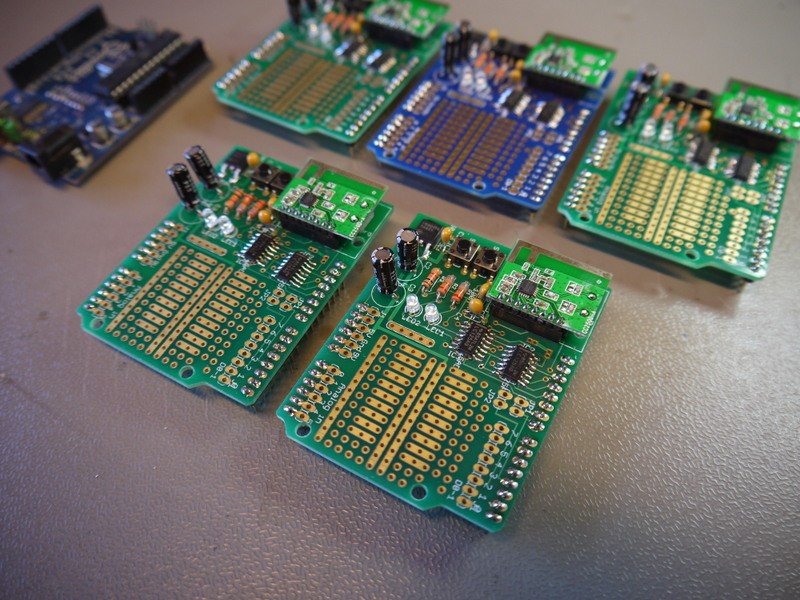
The built up Arduino CC2500 Shield

Eagle3D allows you to render an image of the board.

Eagle3D allows you to render an image of the board.

Better Tag Cloud